Basic single-LAN FTP/HTTP test lab (Packet Tracer)
Theory prerequisites
Read Networking Models, MAC Addresses & ARP, Switches vs Routers, and HTTP/HTTPS & TLS. Return to the Lab-Aligned Learning Path after verification.
Topology
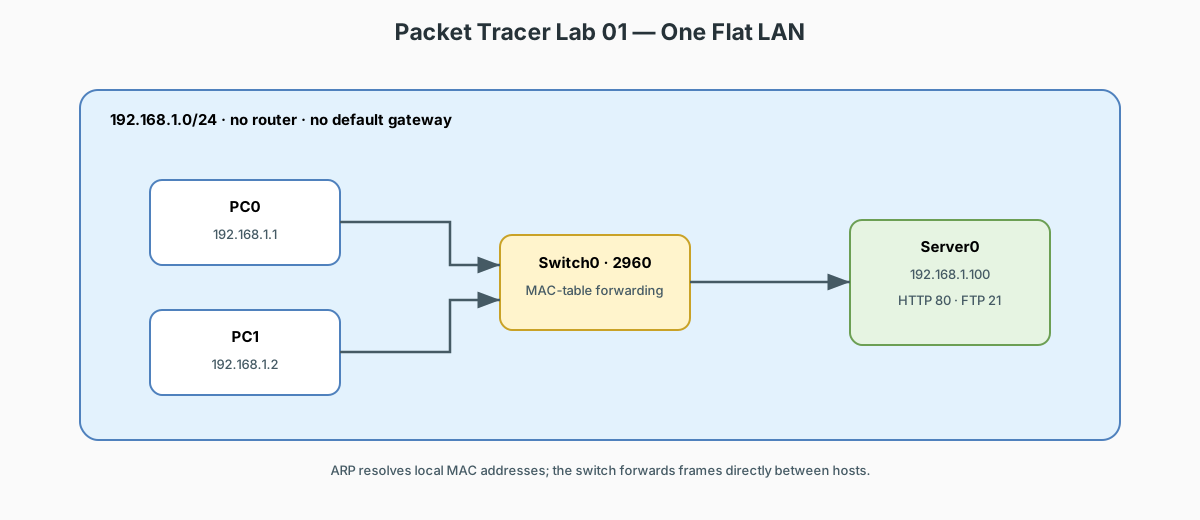
No router, no NAT, no DHCP even required — everything lives on one flat 192.168.1.0/24 network. This isolates FTP/HTTP behavior from routing.
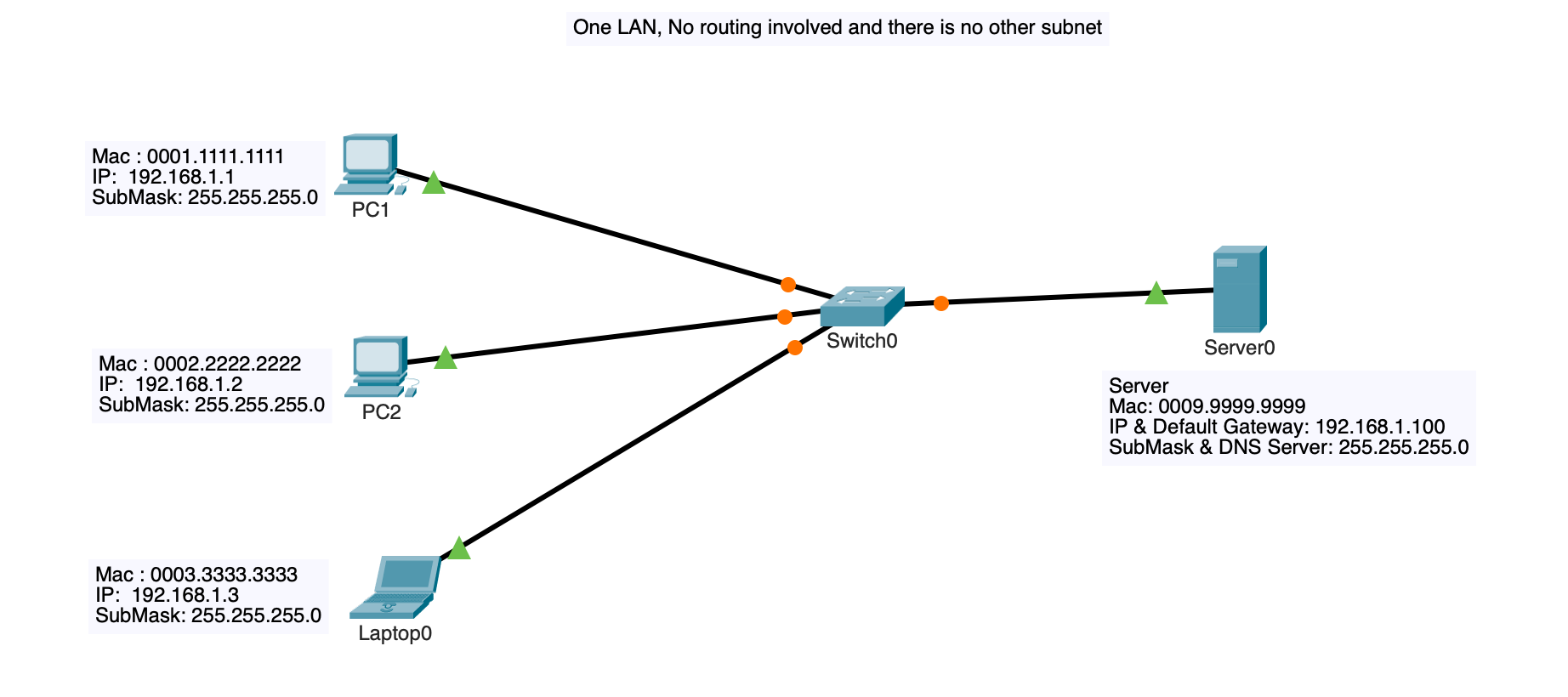
1. Place devices
- 2x Generic PC
- 1x Switch (2960)
- 1x Server (Generic)
2. Cable them (Copper Straight-Through)
- PC0 <-> Switch0 (any FastEthernet port)
- PC1 <-> Switch0 (any FastEthernet port)
- Server0 <-> Switch0 (any FastEthernet port)
3. Addressing (static — keeps it rudimentary, no DHCP needed)
| Device | IP Address | Subnet Mask |
|---|---|---|
| PC0 | 192.168.1.1 | 255.255.255.0 |
| PC1 | 192.168.1.2 | 255.255.255.0 |
| Server0 | 192.168.1.100 | 255.255.255.0 |
On each device: Desktop tab > IP Configuration > Static, enter the IP and mask above. No gateway needed — same subnet, no routing involved.
4. Enable services on Server0
Click Server0 > Config tab > Services (left sidebar):
HTTP - Click "HTTP" service - Toggle On - Default index.html is already there; edit it if you want recognizable content to fetch later
FTP
- Click "FTP" service
- Toggle On
- Under "User Setup", add a user:
- Username: cisco
- Password: cisco
- Permissions: check all (Read, Write, Delete, Rename, List)
- Click the + (add) button to save the user
- This user/password is what PC0/PC1 will use to log in via FTP
5. Test HTTP (from PC0 or PC1)
- Click the PC > Desktop tab > Web Browser
- Type
192.168.1.100in the address bar > Enter - The Server0 HTTP page should load
6. Test FTP (from PC0 or PC1)
- Click the PC > Desktop tab > Command Prompt
- Run:
- When prompted for username:
cisco - When prompted for password:
cisco - Once connected, try:
This lists files on the server (should show
index.htmlat minimum, since it's the file the HTTP service uses).
To actually transfer a file, first put one there from the PC side:
(You'd need a file already present on the PC's simulated filesystem — Packet Tracer PCs have a limited local filesystem under the PC's own Desktop but generally the more common test is aget:)
This pulls the server's file down to the PC, giving you a visible
FTP data-transfer event to inspect.
7. Equivalent commands on a real machine
Everything above uses Packet Tracer's simulated Desktop tools. On a real Windows or Linux host on the same flat LAN (static IP, no gateway, no DHCP), the equivalent checks are:
| Check | Windows (cmd/PowerShell) | Linux |
|---|---|---|
| Verify your IP/mask | ipconfig (ipconfig /all for detail) |
ip addr (or ip a) |
| Test reachability to server | ping 192.168.1.100 |
ping 192.168.1.100 |
| See ARP cache (learned MACs) | arp -a |
ip neigh (or arp -n) |
| Test HTTP | curl http://192.168.1.100 |
curl http://192.168.1.100 |
| Test FTP | ftp 192.168.1.100 |
ftp 192.168.1.100 or curl ftp://cisco:cisco@192.168.1.100/ |
Notes:
pingworks the same on both — it's your first check that L2/L3 connectivity to the server is up, just like browsing/ftp in the lab.arp -a/ip neighis the host-side analog of what the switch does with its MAC table: after pinging, you'll see192.168.1.100resolved to Server0's MAC address.- Since this lab is a single subnet with no router, there is no default
gateway to check and
tracert/traceroutewould just show one hop. DHCP (dhclient,ipconfig /renew), NAT, and DNS (nslookup) checks get added in the later labs that introduce them.
On the switch prompt
Run Simulation
- Just keep ARP and HTTP
8. What to observe (ties back to the concepts)
| Action | Concept |
|---|---|
| Switch to Simulation mode, browse HTTP | TCP 3-way handshake on port 80, then GET/response |
Simulation mode, ftp session |
TCP control connection on port 21, separate data connection for transfers |
| Click the packet envelope mid-transfer | Inspect actual header: source/dest IP, port, protocol |
dir inside the FTP session |
FTP's command channel listing server-side files |
| Try browsing from PC0 vs PC1 | Confirms both reach the server via Switch0's MAC table — no routing needed since it's one subnet |
Notes
- This is intentionally the simplest possible version — one subnet, static IPs, no VLANs, no router, no NAT. Once this works end to end, the previous multi-router lab (with NAT and DHCP) builds on top of exactly this same FTP/HTTP service setup.
- If HTTP or FTP won't connect, the most common cause in Packet Tracer is the service toggle being off, or the PC/Server IP being on a different subnet by typo — double check both before troubleshooting further.