Terraform Lab 05 — Two-Tier GCP Networking Scenario
Now that you understand Subnetting, Default Gateways, NAT/PAT, DNS, and Routing from Packet Tracer, this guide translates those exact concepts into Google Cloud Platform (GCP) software-defined networking using Terraform (Infrastructure as Code).
Lab contract
| Item | This lab |
|---|---|
| Execution model | Standalone consolidation in a new working directory and state |
| Starts from | Labs 01–04 completed; their resources should be destroyed |
| Creates | A complete two-tier VPC, NAT, policy, DNS, and VM stack |
| Why standalone | It rebuilds the foundation with new names and CIDRs rather than appending to Lab 04 |
| Next | Lab 06 — VPC Peering & Shared VPC |
Resource summary
| Resource type | Count | Purpose |
|---|---|---|
google_compute_network |
1 | Custom production-style VPC |
google_compute_subnetwork |
2 | Web and private application tiers |
google_compute_router / google_compute_router_nat |
1 each | Private application-tier egress |
google_compute_firewall |
3 | Public HTTP, restricted administration, and web-to-app policy |
google_dns_managed_zone / google_dns_record_set |
1 each | Private backend service discovery |
google_compute_instance |
2 | Frontend and private backend workloads |
New state, not an append
Do not paste this complete configuration into the Labs 02–04 directory. Names, CIDRs, and Terraform addresses differ; use a new folder such as terraform-labs/05-two-tier/.
The Mental Bridge: Physical vs. GCP vs. Terraform
| Physical / Packet Tracer Concept | GCP Cloud Equivalent | Terraform Resource (google_...) |
What It Does |
|---|---|---|---|
| Autonomous System / Boundary | VPC (Virtual Private Cloud) | google_compute_network |
Software-defined global routing domain. |
Subnet (/24, /26) |
Custom Subnet | google_compute_subnetwork |
Regional IP address pool bounded by CIDR. |
| Router Interface / Default Gateway | Default Internet Gateway / Routes | google_compute_route |
Automatically routes between subnets and to the internet. |
| NAT Overload / PAT | Cloud Router + Cloud NAT | google_compute_routergoogle_compute_router_nat |
Allows private VMs to reach the internet without public IPs. |
| Switch ACLs / Router Filters | VPC Firewall Rules | google_compute_firewall |
Stateful ingress and egress traffic filtering. |
| Dedicated DNS Server | Cloud DNS (Private Zone) | google_dns_managed_zonegoogle_dns_record_set |
Resolves internal domain names across VPC instances. |
| Physical Server / Host | Compute Engine (VM Instance) | google_compute_instance |
Virtual machine connected to a specific subnet. |
The Scenario: Secure 2-Tier Architecture
You are provisioning a real-world enterprise infrastructure in us-central1:
- Web Subnet (
10.1.10.0/24): Hosts a public-facing Web Server (frontend-web-vm) accessible via HTTP on port 80. - App Subnet (
10.1.20.0/24): Hosts a private backend Application Server (backend-app-vm) with NO public IP. - Cloud NAT: The backend VM reaches external APIs and software updates safely via Cloud NAT.
- Private Cloud DNS: The Web Server communicates with the backend using the internal domain name
api.corp.internal.
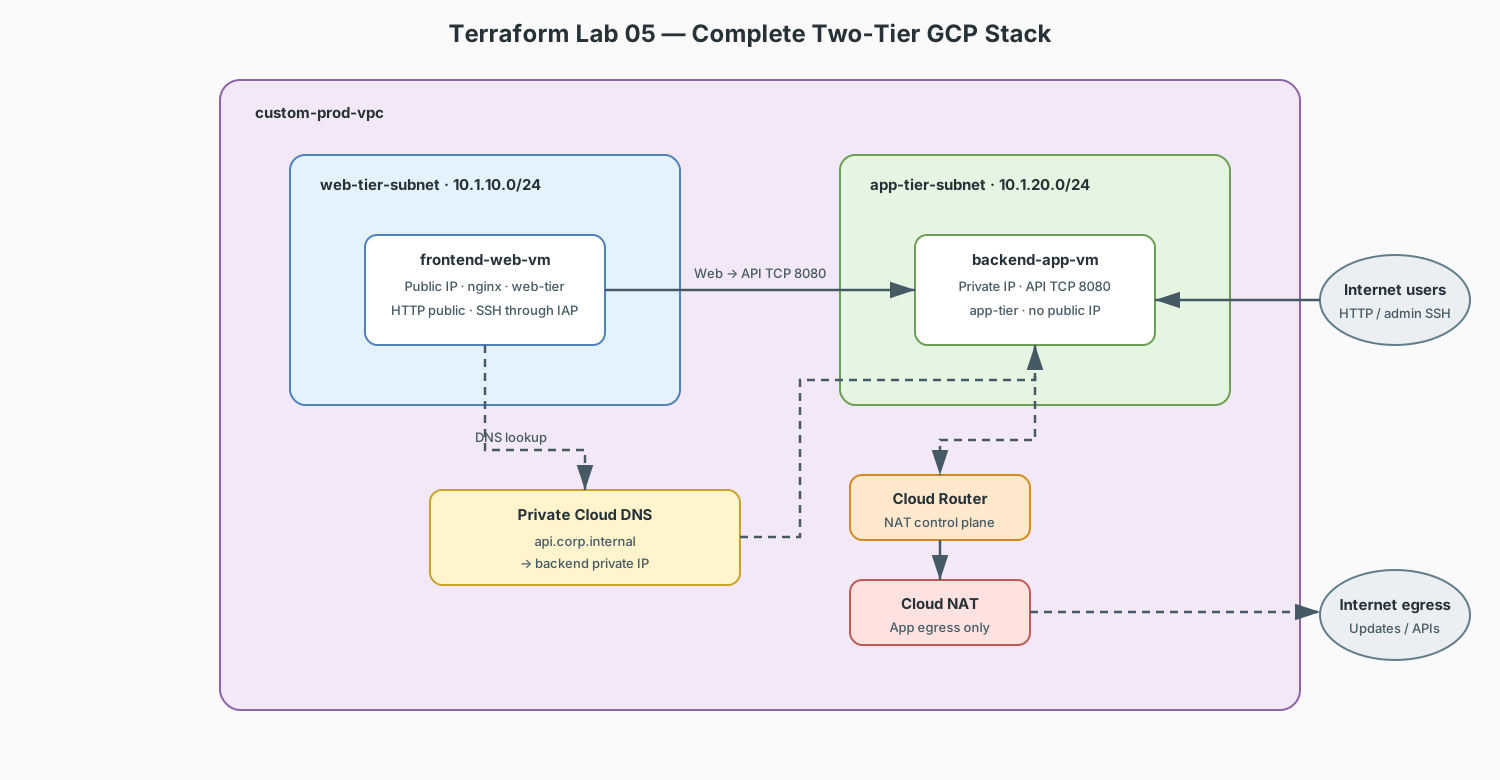
Complete Terraform Configuration (main.tf)
Here is the complete, modular Terraform file implementing the entire architecture:
terraform {
  required_version = ">= 1.5.0"
  required_providers {
    google = {
      source  = "hashicorp/google"
      version = "~> 5.0"
    }
  }
}

provider "google" {
  project = var.project_id
  region  = var.region
}

variable "project_id" {
  description = "GCP project ID to deploy into"
  type        = string
}

variable "region" {
  description = "GCP region for the two-tier stack"
  type        = string
  default     = "us-central1"
}

# -----------------------------------------------------------------------------
# 1. VPC NETWORK & SUBNETS
# -----------------------------------------------------------------------------

# Always use auto_create_subnetworks = false (Custom Mode) in production!
resource "google_compute_network" "vpc_network" {
  name                    = "custom-prod-vpc"
  auto_create_subnetworks = false
  description             = "Custom Enterprise Production VPC"
}

# Web Tier Subnet (Public Ingress)
resource "google_compute_subnetwork" "web_subnet" {
  name          = "web-tier-subnet"
  ip_cidr_range = "10.1.10.0/24"
  region        = var.region
  network       = google_compute_network.vpc_network.id
}

# Backend App Tier Subnet (Private Isolated)
resource "google_compute_subnetwork" "app_subnet" {
  name                     = "app-tier-subnet"
  ip_cidr_range            = "10.1.20.0/24"
  region                   = var.region
  network                  = google_compute_network.vpc_network.id
  private_ip_google_access = true
}

# -----------------------------------------------------------------------------
# 2. CLOUD ROUTER & CLOUD NAT (The Cloud Equivalent of PAT Overload)
# -----------------------------------------------------------------------------

resource "google_compute_router" "nat_router" {
  name    = "prod-nat-router"
  region  = google_compute_subnetwork.app_subnet.region
  network = google_compute_network.vpc_network.id
}

resource "google_compute_router_nat" "app_nat" {
  name                               = "prod-cloud-nat"
  router                             = google_compute_router.nat_router.name
  region                             = google_compute_router.nat_router.region
  nat_ip_allocate_option             = "AUTO_ONLY"
  source_subnetwork_ip_ranges_to_nat = "LIST_OF_SUBNETWORKS"

  subnetwork {
    name                    = google_compute_subnetwork.app_subnet.id
    source_ip_ranges_to_nat = ["ALL_IP_RANGES"]
  }
}

# -----------------------------------------------------------------------------
# 3. FIREWALL RULES (Stateful Traffic Filters)
# -----------------------------------------------------------------------------

resource "google_compute_firewall" "allow_web_http" {
  name    = "allow-web-http"
  network = google_compute_network.vpc_network.name

  allow {
    protocol = "tcp"
    ports    = ["80"]
  }

  source_ranges = ["0.0.0.0/0"]
  target_tags   = ["web-tier"]
}

resource "google_compute_firewall" "allow_iap_ssh" {
  name    = "allow-iap-ssh"
  network = google_compute_network.vpc_network.name

  allow {
    protocol = "tcp"
    ports    = ["22"]
  }

  source_ranges = ["35.235.240.0/20"]
  target_tags   = ["web-tier"]
}

# Allow Web Tier to reach Backend App Tier on Port 8080 (Internal East-West)
resource "google_compute_firewall" "allow_web_to_app" {
  name    = "allow-web-to-app-internal"
  network = google_compute_network.vpc_network.name

  allow {
    protocol = "tcp"
    ports    = ["8080"]
  }

  allow {
    protocol = "icmp"
  }

  source_tags = ["web-tier"]
  target_tags = ["app-tier"]
}

# -----------------------------------------------------------------------------
# 4. PRIVATE CLOUD DNS (Internal Name Resolution)
# -----------------------------------------------------------------------------

resource "google_dns_managed_zone" "private_zone" {
  name        = "corp-internal-zone"
  dns_name    = "corp.internal."
  description = "Private internal DNS zone for VPC instances"
  visibility  = "private"

  private_visibility_config {
    networks {
      network_url = google_compute_network.vpc_network.id
    }
  }
}

# A-Record mapping api.corp.internal to Backend VM's Private IP
resource "google_dns_record_set" "backend_dns_record" {
  name         = "api.corp.internal."
  managed_zone = google_dns_managed_zone.private_zone.name
  type         = "A"
  ttl          = 300
  rrdatas      = [google_compute_instance.backend_vm.network_interface[0].network_ip]
}

# -----------------------------------------------------------------------------
# 5. COMPUTE ENGINE VIRTUAL MACHINES
# -----------------------------------------------------------------------------

# Frontend Web Server (Has Public IP)
resource "google_compute_instance" "frontend_vm" {
  name         = "frontend-web-vm"
  machine_type = "e2-micro"
  zone         = "${var.region}-a"
  tags         = ["web-tier"]

  boot_disk {
    initialize_params {
      image = "debian-cloud/debian-12"
    }
  }

  network_interface {
    subnetwork = google_compute_subnetwork.web_subnet.id
    access_config {
      # Presence of access_config assigns a Public IP
    }
  }

  metadata_startup_script = <<-EOF
    #!/bin/bash
    apt-get update
    apt-get install -y nginx
    echo "<h1>Welcome to Frontend Web Tier</h1>" > /var/www/html/index.html
  EOF
}

# Backend App Server (Private IP ONLY - No access_config block!)
resource "google_compute_instance" "backend_vm" {
  name         = "backend-app-vm"
  machine_type = "e2-micro"
  zone         = "${var.region}-a"
  tags         = ["app-tier"]

  boot_disk {
    initialize_params {
      image = "debian-cloud/debian-12"
    }
  }

  network_interface {
    subnetwork = google_compute_subnetwork.app_subnet.id
    # No access_config block means NO Public IP (Fully Private)
  }

  metadata_startup_script = <<-EOF
    #!/bin/bash
    apt-get update
    apt-get install -y python3
    install -d /opt/backend-api
    echo "Backend API Service Response" > /opt/backend-api/index.html
    cat > /etc/systemd/system/backend-api.service <<'UNIT'
    [Unit]
    Description=Lab 05 backend API
    After=network-online.target

    [Service]
    ExecStart=/usr/bin/python3 -m http.server 8080 --directory /opt/backend-api
    Restart=always

    [Install]
    WantedBy=multi-user.target
    UNIT
    systemctl daemon-reload
    systemctl enable --now backend-api
  EOF
}

output "frontend_vm_name" {
  value = google_compute_instance.frontend_vm.name
}

output "backend_vm_name" {
  value = google_compute_instance.backend_vm.name
}

output "vm_zone" {
  value = google_compute_instance.frontend_vm.zone
}
Key Networking Concepts Explained in Terraform
1. Why auto_create_subnetworks = false?
In standard GCP, an "Auto Mode" VPC automatically creates a /20 subnet in every single region across the globe. In professional environments, you always use Custom Mode (auto_create_subnetworks = false) to maintain strict control over IP CIDR design, exactly like designing subnets in your Packet Tracer labs.
2. How Cloud NAT Replaces the Router Gig0/1 NAT Config
In our earlier lab, we ran ip nat inside source list 1 interface gig0/1 overload. In GCP:
* The backend-app-vm has no access_config (no public IP), making it completely unreachable from the internet.
* When backend-app-vm runs apt-get update, outbound packets hit google_compute_router_nat, which translates its private IP to a temporary GCP public IP to fetch packages, then forwards replies back internally.
3. How Target Tags Implement Micro-Segmentation
Instead of configuring access-lists on router ports, GCP uses Network Tags (tags = ["web-tier"] and tags = ["app-tier"]). The firewall rule allow_web_to_app only permits traffic from instances tagged web-tier to instances tagged app-tier on port 8080, isolating the backend from all other unauthorized machines.
4. How Cloud DNS Eliminates Hard-Coded IPs
By attaching google_dns_managed_zone to the VPC, frontend_vm can make HTTP requests to http://api.corp.internal:8080. Even if the backend VM is destroyed and recreated with a new dynamic private IP, Terraform automatically updates the DNS record, ensuring zero broken dependencies.
Deploy and verify Lab 05
Lab 05 is a standalone deployment. Entering its directory does not create its
resources. If gcloud compute instances list shows only frontend-vm and
backend-vm, those are Lab 04 resources; Lab 05 has not been applied yet.
SSH administration uses Identity-Aware Proxy, so no administrator public IP is
required. The connecting identity needs roles/iap.tunnelResourceAccessor.
1. Enter the Lab 05 directory
From the repository root:
2. Initialize and deploy
gcloud services enable \
  compute.googleapis.com \
  dns.googleapis.com \
  iap.googleapis.com \
  --project="$PROJECT_ID"

terraform init
terraform fmt -check
terraform validate
terraform plan -var="project_id=$PROJECT_ID"
terraform apply -var="project_id=$PROJECT_ID"
Approve the apply and wait for it to finish successfully. The apply creates
frontend-web-vm and backend-app-vm; a plan alone creates nothing.
3. Verify the Lab 05 resources exist
terraform state list

gcloud compute instances list \
  --project="$PROJECT_ID" \
  --filter='name=(frontend-web-vm backend-app-vm)'
Do not continue until the list includes frontend-web-vm in
us-central1-a. A resource was not found error means the apply did not
complete in this directory and project.
4. Connect to the frontend through IAP
Use Terraform outputs rather than retyping the VM name and zone:
FRONTEND_VM="$(terraform output -raw frontend_vm_name)"
VM_ZONE="$(terraform output -raw vm_zone)"

gcloud compute ssh "$FRONTEND_VM" \
  --project="$PROJECT_ID" \
  --zone="$VM_ZONE" \
  --tunnel-through-iap
5. Verify the private application tier
Run these commands from the frontend VM shell:
getent hosts api.corp.internal
curl http://api.corp.internal:8080
curl http://10.1.20.2:8080

# Expected output: Backend API Service Response
Cleanup and next step
Run cleanup from the same Lab 05 directory and Terraform state:
Continue to Lab 06 — VPC Peering & Shared VPC.