Lab Setup & Installation Guide
Complete step-by-step guide to setting up your RAG learning environment.
⚡ Quick Start (5 minutes)
Use PyCharm
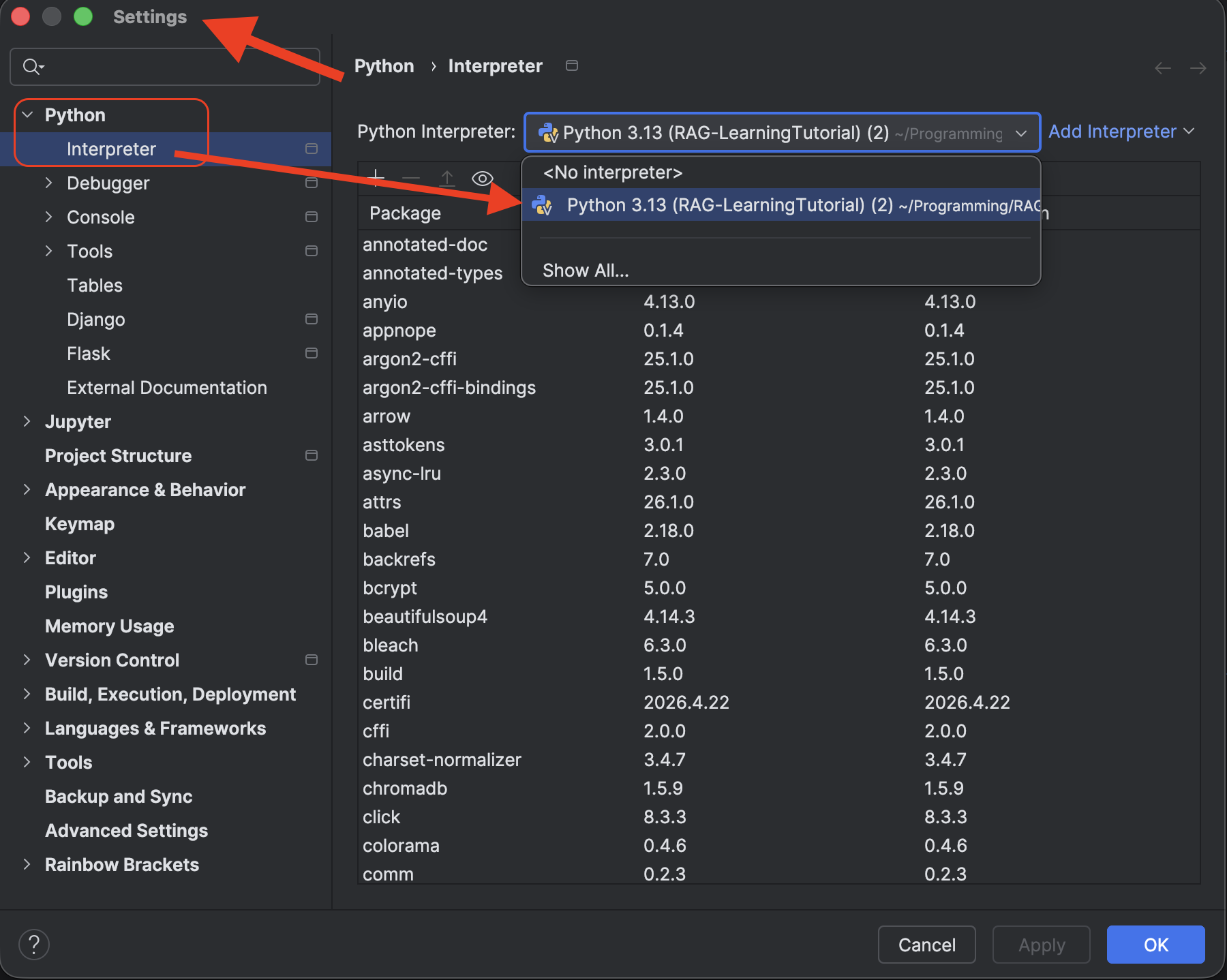
macOS/Linux
not needed if pycharm or Jupyter nitebooks are used
# 1. Navigate to lab directory
cd docs/labs

# 2. Create virtual environment
python3 -m venv .venv
source .venv/bin/activate

# 3. Install dependencies
pip install -r requirements-labs.txt

# 4. Verify installation
python -c "from sentence_transformers import SentenceTransformer; print('✅ Ready!')"

# 5. Start Jupyter
jupyter notebook
Windows (Command Prompt)
cd docs/labs
python -m venv venv
venv\Scripts\activate
pip install -r requirements-labs.txt
python -c "from sentence_transformers import SentenceTransformer; print('✅ Ready!')"
jupyter notebook
📊 Optional: Advanced Setup
For Using OpenAI API (Lab 7 optional)
For Using MongoDB Atlas (Full Dataset)
For GPU Support
# NVIDIA GPU (CUDA 11.8)
pip install torch torchvision torchaudio --index-url https://download.pytorch.org/whl/cu118

# Apple Silicon Mac
conda install pytorch::pytorch torchvision torchaudio -c pytorch
🆘 Emergency Reset
If something breaks badly:
# Remove virtual environment
rm -rf venv  # macOS/Linux
rmdir /s venv  # Windows command prompt

# Start fresh
python3 -m venv .venv
source .venv/bin/activate  # or venv\Scripts\activate
pip install -r requirements-labs.txt
Setup complete? Start with Lab 0: Environment Setup 🚀
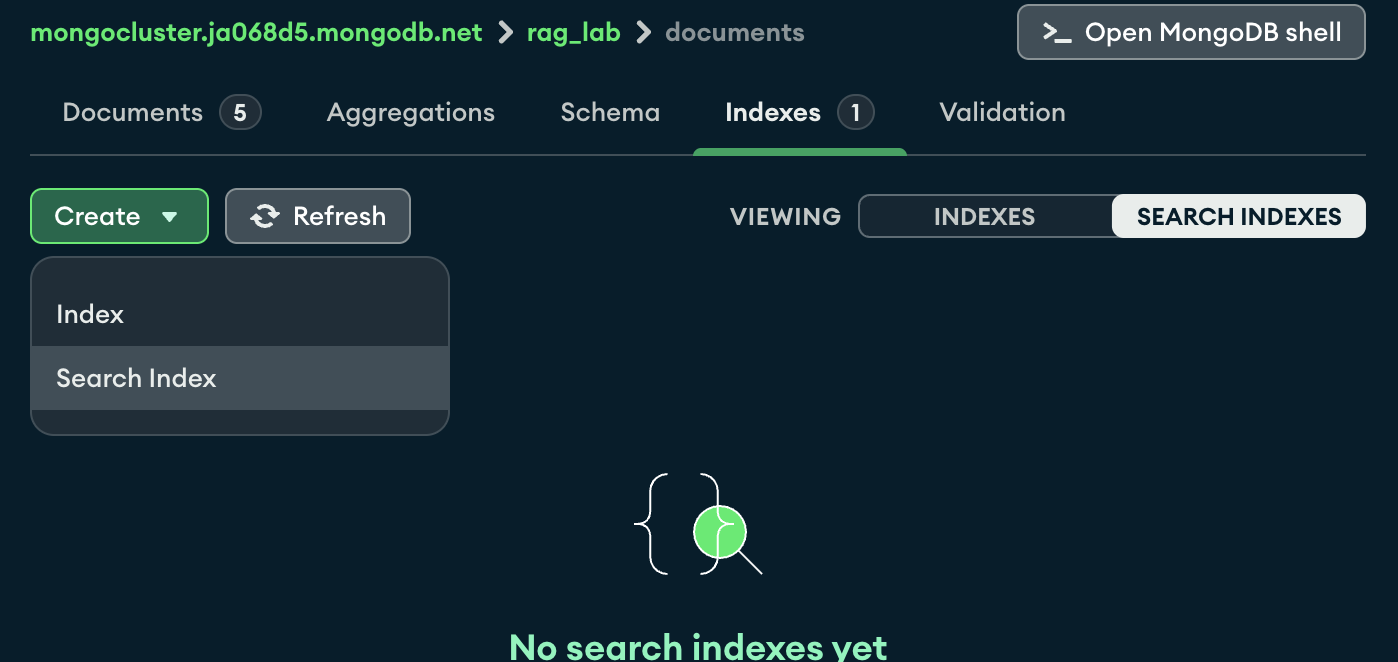
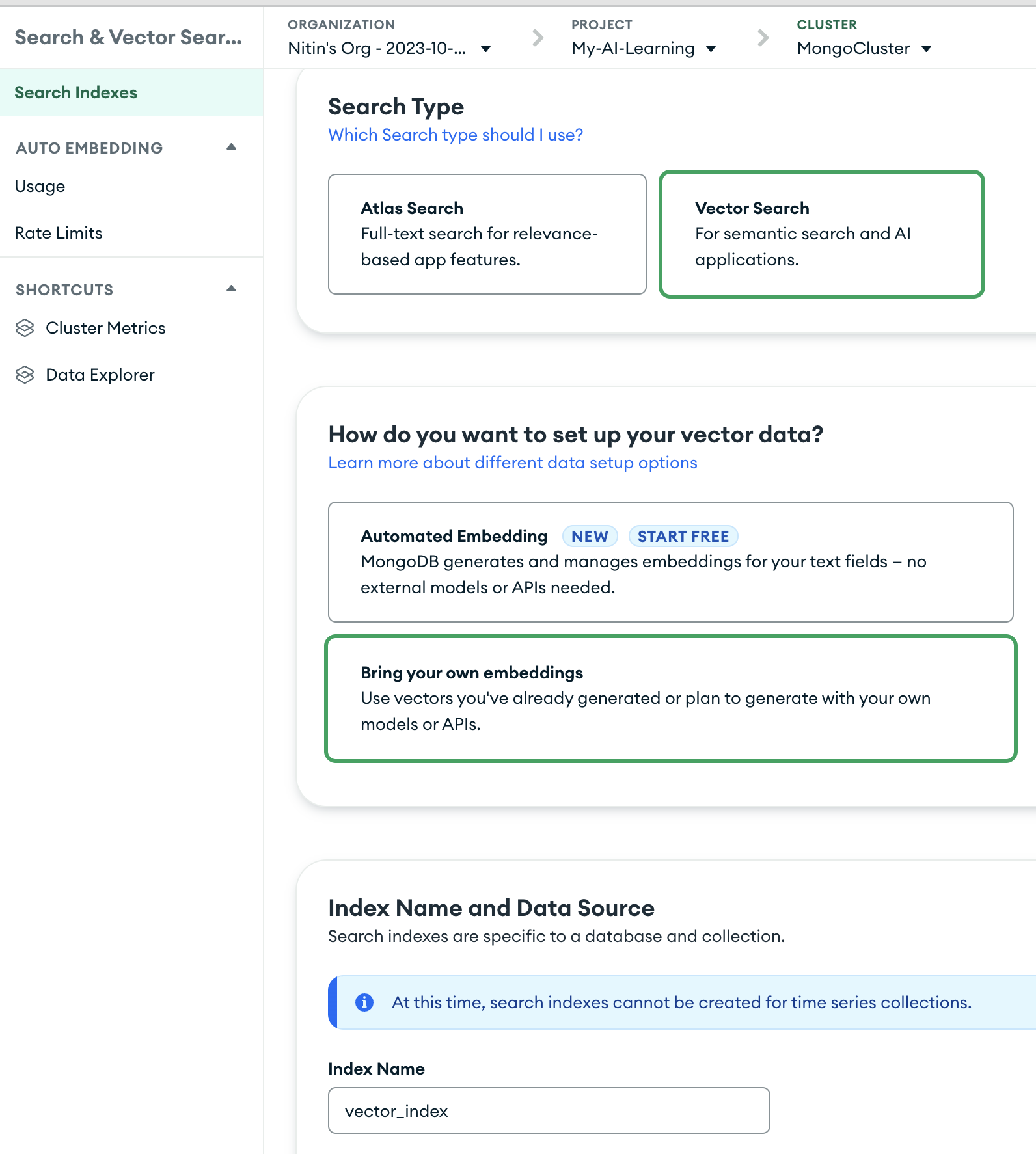
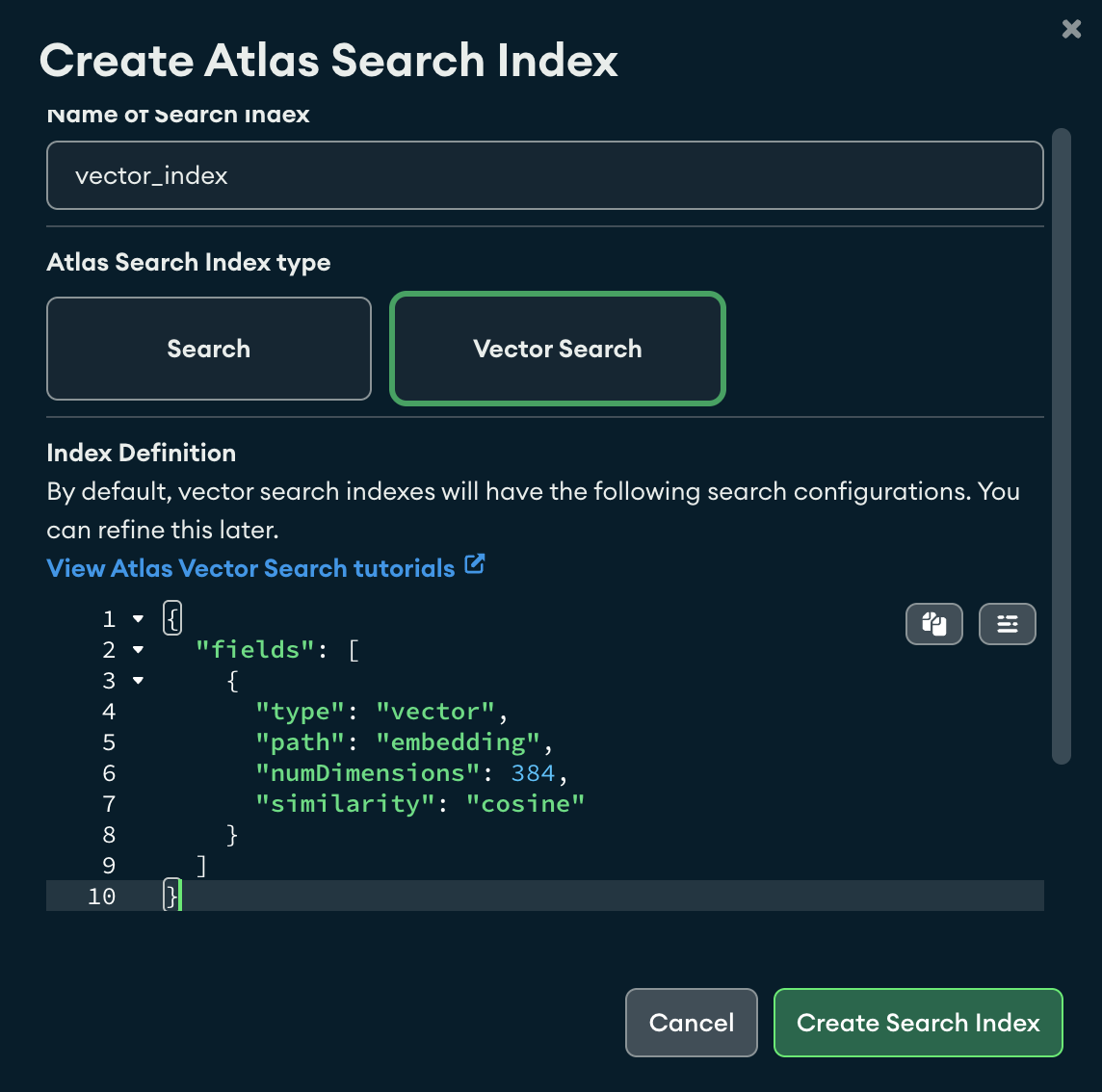
Mongo DB
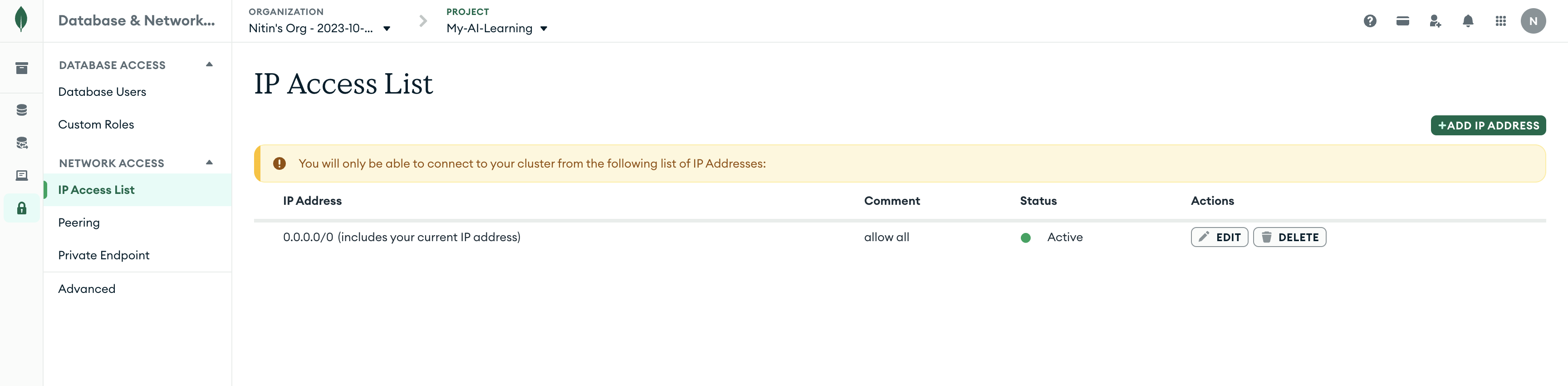
Allow the IP Address of your machine to access the MongoDB Atlas cluster by adding it to the IP Access List in the MongoDB Atlas dashboard.
After the db is set up, you can inspect the search index to see how documents are being chunked and embedded for retrieval.