GCP, GKE, Kubernetes, and Helm Operations Runbook Commands
Kubernetes Games
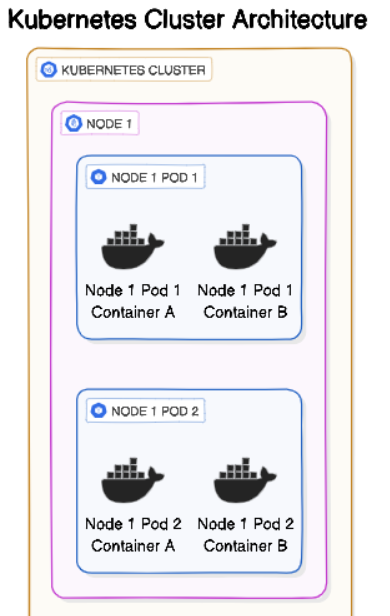
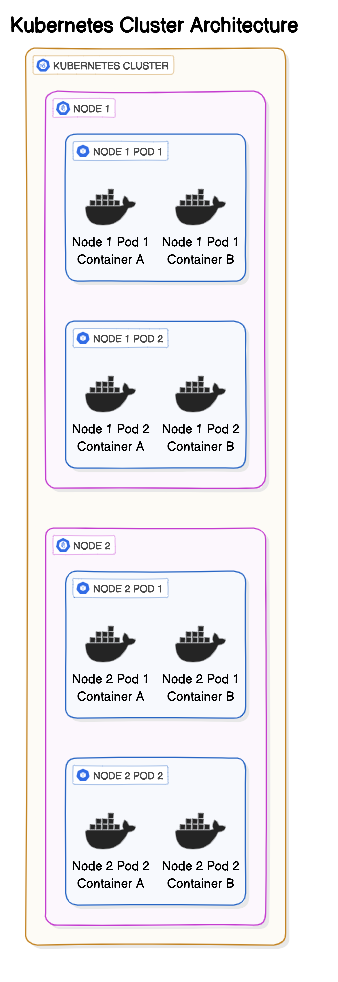
Automates
- Deployment of containers
- Scaling of containers
- Maintenance of containers
Minikube
brew install minikube
Start/shutdown the cluster
minikube start
minikube stop # Saves the state
minikube delete # Deletes everything
Dashboard
minikube dashboard
1. Prerequisites and Safety
Required tools
Confirm that the following tools are installed and available in PATH:
command -v gcloud
command -v kubectl
command -v helm
command -v jq
You may also need:
- An authorized GCP identity or corporate account
- Access to the target GCP project and GKE cluster
- Corporate VPN or network connectivity
- Permission to access the target Kubernetes namespace
-
watch,curl, or equivalent command-line utilities
Enable Kubernetes shell completion
- For Zsh, add the following to
~/.zshrcif completion is configured for your environment:
# Kubernetes completion for Zsh
autoload -Uz compinit
compinit
source <(kubectl completion zsh)
Safety rules
- Do not assume that the current terminal is connected to the intended GCP project or Kubernetes cluster.
- Before every mutating operation, verify the active account, project, context, cluster, and namespace.
- Prefer explicit
--project,--region/--zone,--context, and--namespace/-nflags for important commands. - Treat
delete,uninstall,scale,rollback,restart,apply,label, andannotatecommands as state-changing operations. - Treat
--force,--grace-period=0, bulk operations, and secret decoding as high-risk operations. - Never paste secret values, tokens, private keys, or decoded secret output into tickets, chat, or shared documents.
- Do not use a local Terraform apply to repair an infrastructure-managed Helm release unless the owning process explicitly requires it. Use the approved CI/CD or infrastructure workflow.
2. Core Concepts
These terms are related but are not interchangeable:
| Term | Meaning | Typical command |
|---|---|---|
| GCP account | The authenticated Google identity used by gcloud
|
gcloud auth list |
| GCP project | The Google Cloud project containing the GKE cluster | gcloud config get-value project |
| GKE cluster | The managed Kubernetes cluster in a GCP project | gcloud container clusters list |
| Kubernetes context | A local kubeconfig entry that identifies a cluster, user, and optional namespace | kubectl config current-context |
| Kubernetes namespace | A logical boundary for Kubernetes resources | kubectl get namespaces |
| Helm release | An installed instance of a Helm chart in a namespace | helm list -n <NAMESPACE> |
Important:
kubectl config use-contextchanges the active local Kubernetes context. It does not change the active GCP account or the default GCP project. Likewise,gcloud config set projectchanges the default forgcloud; it does not switch the active Kubernetes context.
3. Quick Reference: Account and Cluster Switching
Use this sequence whenever switching between GCP projects or GKE clusters.
3.1 Authenticate and inspect the active GCP identity
# Sign in if needed
gcloud auth login

# Show authenticated accounts
gcloud auth list

# Select an already-authenticated account
gcloud config set account <ACCOUNT_EMAIL>

# Show the active account
gcloud config get-value account

# Show the default gcloud project
gcloud config get-value project
If the target account is not listed, authenticate it first with gcloud auth login or your organization’s approved credential flow. Complete any required corporate identity or VPN steps before continuing.
3.2 Select the target GCP project
# Optional: change the default project for subsequent gcloud commands
gcloud config set project <PROJECT_ID>

# Confirm the selected project
gcloud config get-value project
For one-off operations, prefer an explicit project flag instead of changing the default:
gcloud container clusters list --project <PROJECT_ID>
3.3 Fetch GKE credentials
If the cluster is not already present in kubeconfig, fetch its credentials:
# Regional cluster
gcloud container clusters get-credentials <CLUSTER_NAME> \
  --region <REGION> \
  --project <PROJECT_ID>

# Zonal cluster
gcloud container clusters get-credentials <CLUSTER_NAME> \
  --zone <ZONE> \
  --project <PROJECT_ID>
Do not use both --region and --zone. Use the location type configured for the cluster.
3.4 Select and verify the Kubernetes context
# List available contexts
kubectl config get-contexts

# Select the intended context
kubectl config use-context <CONTEXT>

# Confirm the selected context
kubectl config current-context

# Confirm cluster connectivity
kubectl cluster-info
Inspect the current kubeconfig when troubleshooting context or credential problems:
kubectl config view
kubectl config get-clusters
3.5 Set or specify a namespace
Set a default namespace for the current context:
kubectl config set-context --current --namespace=<NAMESPACE>
For safer one-off commands, specify the namespace directly:
kubectl get pods -n <NAMESPACE> --context <CONTEXT>
4. Pre-Change Verification
Run this checklist before deleting, uninstalling, scaling, restarting, rolling back, applying, or editing resources.
# Confirm GCP identity and default project
gcloud auth list
gcloud config get-value account
gcloud config get-value project

# Confirm Kubernetes context and connectivity
kubectl config current-context
kubectl cluster-info

# Confirm the intended namespace
kubectl get namespace <NAMESPACE>

# Confirm the resources you are about to affect
kubectl get pods -n <NAMESPACE>
kubectl get deployments -n <NAMESPACE>
helm list -n <NAMESPACE>
If any result is unexpected, stop and correct the account, project, context, or namespace before continuing.
5. Kubernetes Basics
5.1 Namespaces
# List namespaces
kubectl get namespaces

# Create a namespace
kubectl create namespace <NAMESPACE>

# Inspect a namespace
kubectl describe namespace <NAMESPACE>
5.2 Pods
# List pods in the current namespace
kubectl get pods

# List pods in a specific namespace
kubectl get pods -n <NAMESPACE>

# Show node and IP information
kubectl get pods -n <NAMESPACE> -o wide

# Store a pod name for repeated commands
export POD_NAME=<POD_NAME>

# Show detailed pod configuration and events
kubectl describe pod "$POD_NAME" -n <NAMESPACE>

# Show the complete pod definition
kubectl get pod "$POD_NAME" -n <NAMESPACE> -o yaml

# Watch pod status changes
kubectl get pods -n <NAMESPACE> --watch
5.3 Services and endpoints
# List services
kubectl get services -n <NAMESPACE>

# Inspect a service
kubectl get service <SERVICE_NAME> -n <NAMESPACE>
kubectl describe service <SERVICE_NAME> -n <NAMESPACE>

# Check the service's selected endpoints
kubectl get endpoints <SERVICE_NAME> -n <NAMESPACE>
kubectl describe endpoints <SERVICE_NAME> -n <NAMESPACE>
5.4 Deployments
# List deployments
kubectl get deployments -n <NAMESPACE>

# Inspect a deployment
kubectl describe deployment <DEPLOYMENT_NAME> -n <NAMESPACE>

# Show the rollout history
kubectl rollout history deployment/<DEPLOYMENT_NAME> -n <NAMESPACE>
5.5 Execute commands in a pod
Use /bin/sh unless the image is known to contain Bash:
kubectl exec -it <POD_NAME> -n <NAMESPACE> -- /bin/sh
kubectl exec -it <POD_NAME> -n <NAMESPACE> -- /bin/bash
For a multi-container pod:
kubectl exec -it <POD_NAME> -c <CONTAINER_NAME> -n <NAMESPACE> -- /bin/sh
Run a non-interactive command:
kubectl exec <POD_NAME> -n <NAMESPACE> -- env
kubectl exec <POD_NAME> -n <NAMESPACE> -- ps aux
kubectl exec <POD_NAME> -n <NAMESPACE> -- netstat -tulpn
5.6 Test connectivity from inside the cluster
Start a temporary BusyBox pod:
kubectl run debug-shell \
  --image=busybox \
  --restart=Never \
  -it \
  --rm \
  -n <NAMESPACE> \
  -- sh
Inside the temporary shell:
wget -qO- http://<POD_IP>:<PORT>/actuator/health
wget -qO- http://<SERVICE_NAME>:<PORT>/actuator/health
Test DNS resolution:
kubectl run dns-debug \
  --image=busybox \
  --restart=Never \
  -it \
  --rm \
  -n <NAMESPACE> \
  -- nslookup kubernetes.default
For more network tools:
kubectl run network-debug \
  --image=nicolaka/netshoot \
  --restart=Never \
  -it \
  --rm \
  -n <NAMESPACE> \
  -- bash
Inside the network debugging pod:
curl -v http://<SERVICE_NAME>.<NAMESPACE>.svc.cluster.local:<PORT>
nslookup <SERVICE_NAME>.<NAMESPACE>.svc.cluster.local
traceroute <SERVICE_NAME>.<NAMESPACE>.svc.cluster.local
5.7 Port forwarding
# Forward directly to a pod
kubectl port-forward pod/<POD_NAME> <LOCAL_PORT>:<POD_PORT> -n <NAMESPACE>

# Forward to a service
kubectl port-forward service/<SERVICE_NAME> <LOCAL_PORT>:<SERVICE_PORT> -n <NAMESPACE>
From another terminal:
curl http://localhost:<LOCAL_PORT>/actuator/health
6. Helm Release Operations
6.1 List and inspect releases
# List releases in a namespace
helm list -n <NAMESPACE>

# Include releases in all namespaces
helm list --all-namespaces

# Show release status
helm status <RELEASE_NAME> -n <NAMESPACE>

# Show release history
helm history <RELEASE_NAME> -n <NAMESPACE>

# Show values supplied to the release
helm get values <RELEASE_NAME> -n <NAMESPACE>

# Show all computed values
helm get values <RELEASE_NAME> -n <NAMESPACE> --all

# Show rendered Kubernetes resources
helm get manifest <RELEASE_NAME> -n <NAMESPACE>
Before acting on a release, confirm:
- The release name is exact.
- The namespace is exact.
- The active Kubernetes context points to the intended cluster.
- The release is not managed by another deployment or infrastructure workflow.
6.2 Install or upgrade a Helm release
STATE-CHANGING: Review the chart, values, target context, namespace, and rendered output before installing or upgrading a release.
Render and inspect the manifests first when possible:
helm template <RELEASE_NAME> <CHART_REFERENCE> \
  --namespace <NAMESPACE> \
  --values <VALUES_FILE>
Install a new release or upgrade an existing release:
helm upgrade --install <RELEASE_NAME> <CHART_REFERENCE> \
  --namespace <NAMESPACE> \
  --create-namespace \
  --values <VALUES_FILE> \
  --wait \
  --timeout <TIMEOUT>
Verify the deployment:
helm status <RELEASE_NAME> -n <NAMESPACE>
kubectl get pods -n <NAMESPACE>
kubectl get deployments -n <NAMESPACE>
6.3 Remove a Helm release
DESTRUCTIVE: Uninstalling a release removes the resources managed by that release. Confirm the target context, namespace, release name, change approval, and rollback/recovery plan before running this command.
# Inspect the target first
kubectl config current-context
kubectl get namespace <NAMESPACE>
helm list -n <NAMESPACE>
helm status <RELEASE_NAME> -n <NAMESPACE>

# Only after confirmation
helm uninstall <RELEASE_NAME> -n <NAMESPACE>

# Verify the release is gone
helm list -n <NAMESPACE>
Inspect remaining namespaced resources if needed:
kubectl get all -n <NAMESPACE>
kubectl get configmaps,secrets,serviceaccounts,pvc -n <NAMESPACE>
If Terraform or another reconciler defines the release, it may be recreated on the next CI apply or reconciliation cycle. Remove or change the owning configuration through the approved workflow rather than relying on a local uninstall.
7. Application Logs and Pod Inspection
7.1 Logs
# Current logs
kubectl logs <POD_NAME> -n <NAMESPACE>

# Follow logs in real time
kubectl logs --follow <POD_NAME> -n <NAMESPACE>

# Logs from the previous container instance
kubectl logs <POD_NAME> -n <NAMESPACE> --previous

# Logs from a specific container
kubectl logs <POD_NAME> -c <CONTAINER_NAME> -n <NAMESPACE>

# Logs from all containers in a pod
kubectl logs <POD_NAME> --all-containers=true -n <NAMESPACE>

# Logs for a deployment, when supported by labels
kubectl logs deployment/<DEPLOYMENT_NAME> -n <NAMESPACE>
7.2 Copy files
# Copy from a pod to the local machine
kubectl cp <NAMESPACE>/<POD_NAME>:/path/in/pod /local/path

# Copy from the local machine to a pod
kubectl cp /local/path <NAMESPACE>/<POD_NAME>:/path/in/pod
7.3 Events
# List events
kubectl get events -n <NAMESPACE>

# Sort events by the last observed timestamp
kubectl get events -n <NAMESPACE> --sort-by='.lastTimestamp'
8. Troubleshooting Runbook
8.1 Pod is in CrashLoopBackOff
kubectl get pod <POD_NAME> -n <NAMESPACE>
kubectl describe pod <POD_NAME> -n <NAMESPACE>
kubectl logs <POD_NAME> -n <NAMESPACE> --previous
kubectl get events -n <NAMESPACE> --sort-by='.lastTimestamp'
Check liveness and readiness probes in the describe output:
kubectl describe pod <POD_NAME> -n <NAMESPACE> | grep -A 5 -E 'Liveness|Readiness'
Common areas to investigate:
- Application startup errors
- Missing configuration or secrets
- Failed dependency connections
- Incorrect command or entrypoint
- Liveness probe failures
- Memory limits and out-of-memory kills
8.2 Pod is Pending
kubectl describe pod <POD_NAME> -n <NAMESPACE>
kubectl get events -n <NAMESPACE> --sort-by='.lastTimestamp'
kubectl get nodes
kubectl describe nodes
kubectl get pvc -n <NAMESPACE>
For scheduling capacity:
kubectl describe nodes | grep -A 5 'Allocated resources'
Check node selectors, taints/tolerations, affinity rules, resource requests, and unbound PVCs.
8.3 Service is not accessible
# Confirm the service and its selector
kubectl describe service <SERVICE_NAME> -n <NAMESPACE>

# Confirm that pods have matching labels
kubectl get pods -n <NAMESPACE> --show-labels

# Confirm that endpoints exist
kubectl get endpoints <SERVICE_NAME> -n <NAMESPACE>
kubectl describe endpoints <SERVICE_NAME> -n <NAMESPACE>
Test from within the cluster:
kubectl run curl-debug \
  --image=curlimages/curl \
  --restart=Never \
  -it \
  --rm \
  -n <NAMESPACE> \
  -- curl -v http://<SERVICE_NAME>.<NAMESPACE>.svc.cluster.local:<PORT>
Check the service port, target port, selector labels, readiness state, network policies, and application listener address.
8.4 Rollout is failing or stuck
kubectl rollout status deployment/<DEPLOYMENT_NAME> -n <NAMESPACE>
kubectl describe deployment <DEPLOYMENT_NAME> -n <NAMESPACE>
kubectl get replicasets -n <NAMESPACE>
kubectl get events -n <NAMESPACE> --sort-by='.lastTimestamp'
Inspect the rollout history before considering a rollback:
kubectl rollout history deployment/<DEPLOYMENT_NAME> -n <NAMESPACE>
kubectl rollout history deployment/<DEPLOYMENT_NAME> --revision=<REVISION> -n <NAMESPACE>
8.5 High CPU or memory usage
kubectl top pods -n <NAMESPACE> --sort-by=cpu
kubectl top pods -n <NAMESPACE> --sort-by=memory
kubectl top nodes --sort-by=cpu
kubectl top nodes --sort-by=memory
Check requests, limits, and QoS class:
kubectl get pods -n <NAMESPACE> -o=jsonpath='{range .items[*]}{.metadata.name}{"\t"}{.spec.containers[*].resources}{"\n"}{end}'
kubectl get pods -n <NAMESPACE> -o custom-columns=NAME:.metadata.name,QOS:.status.qosClass
8.6 Persistent volume or PVC issue
kubectl get pvc -n <NAMESPACE>
kubectl describe pvc <PVC_NAME> -n <NAMESPACE>
kubectl get pv
kubectl get pv -o custom-columns=NAME:.metadata.name,STATUS:.status.phase,CLAIM:.spec.claimRef.name,STORAGECLASS:.spec.storageClassName,SIZE:.status.capacity.storage
Review storage class, access mode, capacity, node constraints, and events associated with the claim.
8.7 Network policy or DNS issue
kubectl get networkpolicy -n <NAMESPACE>
kubectl describe networkpolicy <NETWORK_POLICY_NAME> -n <NAMESPACE>
Then use the temporary DNS or network debugging pods described in Kubernetes Basics.
8.8 Interactive debugging
Use ephemeral containers only when supported by the cluster and when authorized:
kubectl debug <POD_NAME> -n <NAMESPACE> -it \
  --image=busybox \
  --target=<CONTAINER_NAME>
Debug a node:
kubectl debug node/<NODE_NAME> -it --image=ubuntu
9. Performance, Scaling, and Rollouts
9.1 HPA
# Create an HPA — state-changing
kubectl autoscale deployment <DEPLOYMENT_NAME> \
  --cpu-percent=70 \
  --min=3 \
  --max=10 \
  -n <NAMESPACE>

kubectl get hpa -n <NAMESPACE>
kubectl describe hpa <HPA_NAME> -n <NAMESPACE>
kubectl get hpa -n <NAMESPACE> --watch

# Delete an HPA — state-changing
kubectl delete hpa <HPA_NAME> -n <NAMESPACE>
9.2 Manual scaling
STATE-CHANGING: Scaling manually may conflict with an HPA or GitOps/infrastructure reconciliation.
kubectl scale deployment <DEPLOYMENT_NAME> --replicas=<COUNT> -n <NAMESPACE>
kubectl scale statefulset <STATEFULSET_NAME> --replicas=<COUNT> -n <NAMESPACE>
kubectl scale deployment <DEPLOYMENT_NAME> --replicas=<COUNT> --timeout=5m -n <NAMESPACE>

kubectl get deployment <DEPLOYMENT_NAME> -n <NAMESPACE> \
  -o=jsonpath='{.spec.replicas}{"\n"}'
9.3 Rollout management
kubectl rollout status deployment/<DEPLOYMENT_NAME> -n <NAMESPACE>
kubectl rollout history deployment/<DEPLOYMENT_NAME> -n <NAMESPACE>
kubectl rollout history deployment/<DEPLOYMENT_NAME> --revision=<REVISION> -n <NAMESPACE>
The following commands change workload state:
# Roll back to the previous revision
kubectl rollout undo deployment/<DEPLOYMENT_NAME> -n <NAMESPACE>

# Roll back to a specific revision
kubectl rollout undo deployment/<DEPLOYMENT_NAME> \
  --to-revision=<REVISION> \
  -n <NAMESPACE>

# Pause or resume a rollout
kubectl rollout pause deployment/<DEPLOYMENT_NAME> -n <NAMESPACE>
kubectl rollout resume deployment/<DEPLOYMENT_NAME> -n <NAMESPACE>

# Restart all pods managed by a deployment
kubectl rollout restart deployment/<DEPLOYMENT_NAME> -n <NAMESPACE>
After any rollout change, verify status and inspect events:
kubectl rollout status deployment/<DEPLOYMENT_NAME> -n <NAMESPACE>
kubectl get pods -n <NAMESPACE>
kubectl get events -n <NAMESPACE> --sort-by='.lastTimestamp'
10. Security, RBAC, and Secrets
10.1 Check permissions
kubectl auth can-i create deployments -n <NAMESPACE>
kubectl auth can-i delete pods -n <NAMESPACE>
kubectl auth can-i '*' '*' --all-namespaces

# Check as a service account
kubectl auth can-i get pods \
  --as=system:serviceaccount:<NAMESPACE>:<SERVICE_ACCOUNT_NAME> \
  -n <NAMESPACE>

kubectl auth can-i --list \
  --as=system:serviceaccount:<NAMESPACE>:<SERVICE_ACCOUNT_NAME> \
  -n <NAMESPACE>
10.2 Service accounts
kubectl get serviceaccounts -n <NAMESPACE>
kubectl describe serviceaccount <SERVICE_ACCOUNT_NAME> -n <NAMESPACE>

# Create a service account — state-changing
kubectl create serviceaccount <SERVICE_ACCOUNT_NAME> -n <NAMESPACE>

# Create a short-lived token where supported
kubectl create token <SERVICE_ACCOUNT_NAME> \
  -n <NAMESPACE> \
  --duration=<DURATION>
Avoid printing tokens unless strictly necessary. Treat generated tokens as credentials.
10.3 Secrets
SENSITIVE: Secret values must not be displayed or shared unnecessarily. Prefer references to an approved secret-management system.
# Create from a literal — do not place real secrets in shell history
kubectl create secret generic <SECRET_NAME> \
  --from-literal=<KEY>=<SECRET_VALUE> \
  -n <NAMESPACE>

# Create from a file
kubectl create secret generic <SECRET_NAME> \
  --from-file=<KEY>=<FILE_PATH> \
  -n <NAMESPACE>

# Create a TLS secret
kubectl create secret tls <SECRET_NAME> \
  --cert=<CERT_PATH> \
  --key=<KEY_PATH> \
  -n <NAMESPACE>

# Inspect metadata and encoded data only when authorized
kubectl get secret <SECRET_NAME> -n <NAMESPACE> -o yaml

# Decode one value only when necessary and handle output securely
kubectl get secret <SECRET_NAME> -n <NAMESPACE> \
  -o jsonpath='{.data.<KEY>}' | base64 --decode

# Edit a secret — state-changing
kubectl edit secret <SECRET_NAME> -n <NAMESPACE>

# Delete a secret — destructive
kubectl delete secret <SECRET_NAME> -n <NAMESPACE>
11. Multi-Cluster Operations
11.1 Context management
kubectl config get-contexts
kubectl config current-context
kubectl config use-context <CONTEXT>
kubectl config set-context --current --namespace=<NAMESPACE>
Create a context from existing kubeconfig entries:
kubectl config set-context <CONTEXT> \
  --cluster=<CLUSTER_ENTRY> \
  --user=<USER_ENTRY> \
  --namespace=<NAMESPACE>
Delete an unused context only after confirming it is not needed:
kubectl config delete-context <CONTEXT>
11.2 Read-only checks across clusters
Use explicit contexts so the active context does not determine the target accidentally:
for context in <CONTEXT_A> <CONTEXT_B>; do
  echo "=== Context: $context ==="
  kubectl get pods -n <NAMESPACE> --context="$context"
done
Compare resource definitions:
diff \
  <(kubectl get pods -n <NAMESPACE> --context=<CONTEXT_A> -o yaml) \
  <(kubectl get pods -n <NAMESPACE> --context=<CONTEXT_B> -o yaml)
11.3 Multi-cluster mutations
HIGH RISK: Applying changes in a loop can affect multiple clusters. Use only with an approved change, explicit context list, and a tested manifest.
for context in <CONTEXT_A> <CONTEXT_B>; do
  kubectl apply \
    --context="$context" \
    -n <NAMESPACE> \
    -f <MANIFEST_PATH>
done
Prefer a dry run or read-only inspection first:
kubectl apply \
  --context=<CONTEXT> \
  -n <NAMESPACE> \
  --dry-run=server \
  -f <MANIFEST_PATH>
12. Advanced Queries
# Pod IPs
kubectl get pods -n <NAMESPACE> \
  -o jsonpath='{.items[*].status.podIP}'

# Pod names and nodes
kubectl get pods -n <NAMESPACE> \
  -o jsonpath='{range .items[*]}{.metadata.name}{"\t"}{.spec.nodeName}{"\n"}{end}'

# All container images
kubectl get pods -n <NAMESPACE> \
  -o jsonpath='{.items[*].spec.containers[*].image}' \
  | tr -s '[[:space:]]' '\n' | sort | uniq

# Pod restart counts
kubectl get pods -n <NAMESPACE> \
  -o jsonpath='{range .items[*]}{.metadata.name}{"\t"}{.status.containerStatuses[*].restartCount}{"\n"}{end}'

# Pods not in Running state
kubectl get pods -n <NAMESPACE> -o json \
  | jq -r '.items[] | select(.status.phase != "Running") | .metadata.name'

# Resource requests for all pods
kubectl get pods -n <NAMESPACE> -o json \
  | jq -r '.items[] | "\(.metadata.name): CPU=\(.spec.containers[0].resources.requests.cpu // "unset") Memory=\(.spec.containers[0].resources.requests.memory // "unset")"'
13. Batch Operations
CAUTION: Review the selector and namespace before running any batch command. Prefer listing the affected resources first.
# Preview failed pods
kubectl get pods -n <NAMESPACE> --field-selector=status.phase=Failed

# Delete failed pods — state-changing
kubectl delete pods -n <NAMESPACE> --field-selector=status.phase=Failed

# Preview completed pods
kubectl get pods -n <NAMESPACE> --field-selector=status.phase=Succeeded

# Delete completed pods — state-changing
kubectl delete pods -n <NAMESPACE> --field-selector=status.phase=Succeeded

# Restart all deployments in a namespace — state-changing
kubectl rollout restart deployment --all -n <NAMESPACE>

# Label all pods — state-changing
kubectl label pods --all <KEY>=<VALUE> -n <NAMESPACE>

# Annotate all pods — state-changing
kubectl annotate pods --all <KEY>=<VALUE> -n <NAMESPACE>
Force deletion should be a last resort because it can bypass graceful shutdown and leave dependent systems in an unexpected state:
# FORCE DELETE — use only with explicit approval
kubectl delete pod <POD_NAME> \
  -n <NAMESPACE> \
  --grace-period=0 \
  --force
14. Useful Aliases
Add only aliases that fit your shell and working practices to ~/.zshrc or ~/.bashrc:
alias k='kubectl'
alias kgp='kubectl get pods'
alias kgs='kubectl get services'
alias kgd='kubectl get deployments'
alias kdp='kubectl describe pod'
alias kds='kubectl describe service'
alias kl='kubectl logs'
alias klf='kubectl logs -f'
alias kex='kubectl exec -it'
alias kctx='kubectl config use-context'
alias kns='kubectl config set-context --current --namespace'
alias kwatch='watch -n 2 kubectl get pods'
Apply the changes:
source ~/.zshrc
# or
source ~/.bashrc
Remember that aliases can hide the namespace or context being used. For destructive operations, use the full command with explicit flags instead of relying on an alias.
15. Post-Change Verification
After a deployment, rollback, restart, scale operation, Helm change, or deletion:
# Confirm the target context and namespace again
kubectl config current-context
kubectl get namespace <NAMESPACE>

# Confirm workload state
kubectl get pods -n <NAMESPACE> -o wide
kubectl get deployments -n <NAMESPACE>
kubectl rollout status deployment/<DEPLOYMENT_NAME> -n <NAMESPACE>

# Confirm service routing
kubectl get services -n <NAMESPACE>
kubectl get endpoints <SERVICE_NAME> -n <NAMESPACE>

# Review recent events
kubectl get events -n <NAMESPACE> --sort-by='.lastTimestamp'

# Review Helm state when applicable
helm list -n <NAMESPACE>
helm status <RELEASE_NAME> -n <NAMESPACE>
For an application health check, use a port-forward or an in-cluster test:
kubectl port-forward service/<SERVICE_NAME> <LOCAL_PORT>:<SERVICE_PORT> -n <NAMESPACE>
Then, from another terminal:
curl -fsS http://localhost:<LOCAL_PORT>/actuator/health
Document the final context, namespace, release revision, change performed, verification result, and any follow-up action in the approved operational record.